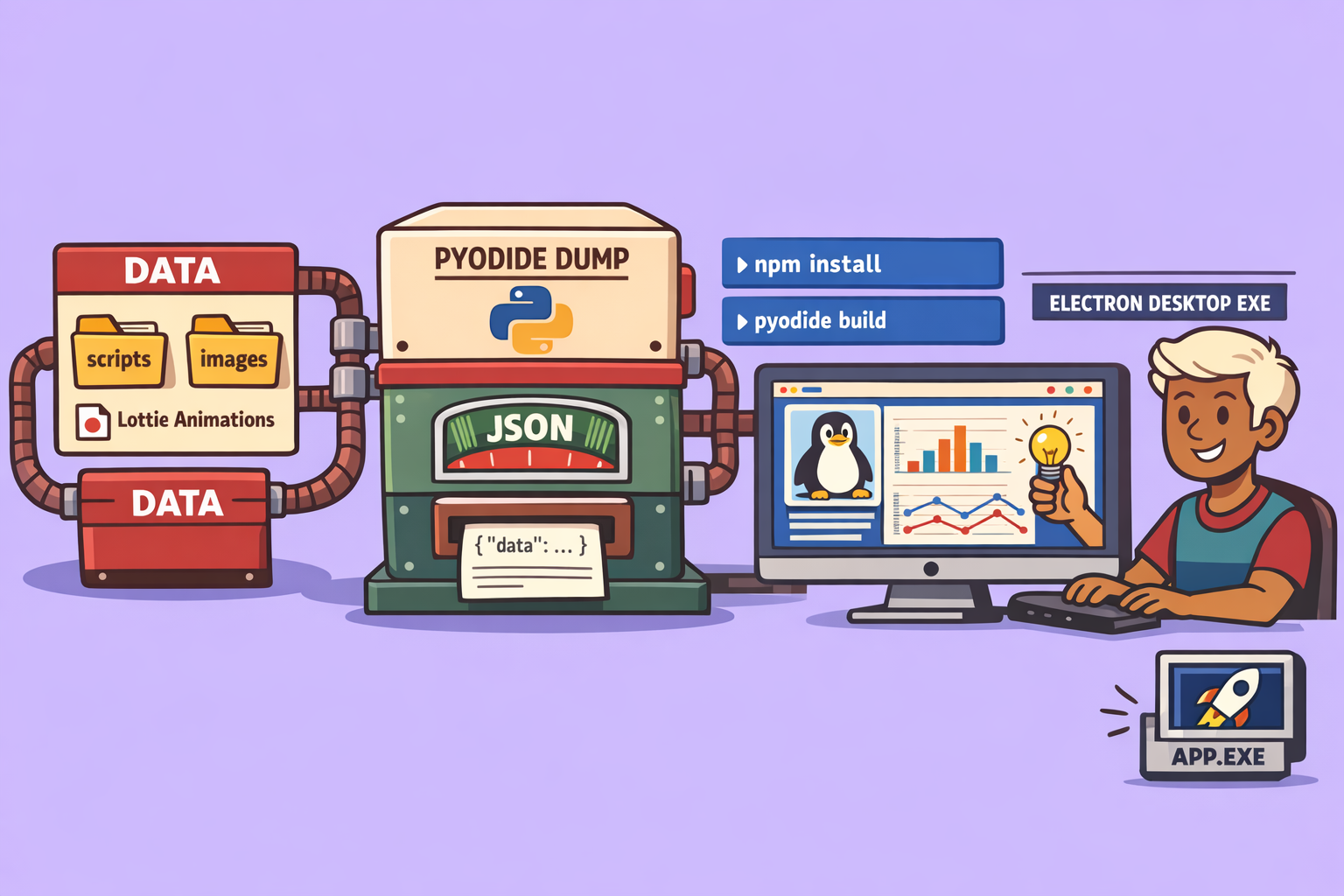
Many data scientists and developers leverage the power of Streamlit to create interactive web applications. However, distributing these applications to end-users, especially those without technical backgrounds, often presents challenges related to Python installations, dependency management, or Docker environments. This article details a robust method to convert Streamlit applications into standalone desktop executables, eliminating the need for Python, Docker, or internet downloads on the client machine. This is achieved through the innovative combination of Pyodide and Electron, facilitated by a library called “Stlite (streamlit lite).”
The Challenge of Streamlit Distribution
Imagine a scenario where you’ve built a fantastic Streamlit application, perhaps for data analysis or visualization, and your manager or marketing team wants to use it. The typical hurdles include:
- Python Installation: Users need to install Python and all its associated libraries, which can be complex and error-prone.
- Dependency Management: Ensuring all required packages are correctly installed in the user’s environment is a constant struggle.
- Docker Requirement: While Docker simplifies deployment, it introduces another layer of software that end-users might not have or want to install.
- Internet Connection: Many deployment methods require an active internet connection to download dependencies or run container images.
Introducing Stlite (streamlit lite): The Game Changer
Stlite (streamlit lite) is a library that allows Streamlit applications to run in a web browser without a direct Python installation. It achieves this by utilizing Pyodide, a project that brings the Python scientific stack to the browser. Once your Streamlit app is “Pyodide-compiled,” it can then be packaged into a desktop executable using Electron, a framework for building desktop applications with web technologies. This combination results in a user-friendly, double-click-to-run experience.
Step-by-Step Guide to Desktop Deployment
Let’s walk through the process of transforming your Streamlit application into a standalone desktop app.
Prerequisites
Before you begin, ensure you have:
- Node.js and npm: Stlite (streamlit lite) relies on npm for package management. If you don’t have it, install Node.js which includes npm.
- A Streamlit Application: For this guide, we’ll assume a multi-page Streamlit app with assets (like images or Lottie animations) loaded from local folders and a
requirements.txtfile listing external Python packages likepandasandplotly.
Step 1: Project Structure and Dependencies
Organize your Streamlit project with the following structure:
your_project_root/
├── streamlit_app_folder/
│   ├── streamlit_script.py
│   ├── pages/
│   │   └── sub_page.py
│   └── images/
│       ├── penguin.png
│       └── 404_animation.json (Lottie file)
├── requirements.txt
└── package.json (to be created)
The requirements.txt file should list all your Python dependencies (e.g., pandas, plotly, streamlit-lottie).
Important Note on Python Packages: Pyodide supports pure Python packages with wheels on PyPI. However, packages with C extensions (like numpy, opencv, xgboost) need to be recompiled for Pyodide. You can check the current list of supported and recompiled packages on the Pyodide website.
Step 2: Initialize npm Project and Install Stlite (streamlit lite)
-
Create
package.json: At the root of your project, create a file namedpackage.json. Copy the content from the Stlite (streamlit lite) desktop README file into thispackage.json. This file will define your project’s metadata and dependencies. -
Install npm Dependencies: Open your terminal in the project root and run:
npm installThis command will install all dependencies specified in
package.jsoninto anode_modulesfolder. It will also create apackage-lock.jsonfile, which pins the exact versions of all installed packages. Bothnode_modulesandpackage-lock.jsonshould generally be ignored in version control systems like Git.
Step 3: Dump Your Streamlit App to a Pyodide Project
-
Run the Dump Command: After
npm installis complete, you can usenpm runto execute scripts defined in yourpackage.json. To prepare your Streamlit app for Pyodide, run the following command:npm run dump -- streamlit_app_folder --packages plotly pandas streamlit-lottie --requirements requirements.txtstreamlit_app_folder: Replace this with the name of your folder containing the Streamlit application. Stlite (streamlit lite) currently expects a Streamlit app within a dedicated folder.--packages: Explicitly list any Python packages your app uses that need to be included in the Pyodide environment.--requirements: (Optional, but recommended) Use the-Ror--requirementsflag to point to yourrequirements.txtfile. The dump command will then automatically parse and include these dependencies.
This command will create a new
buildfolder. This folder contains your application code, external resources (likepagesandimages), the Stlite (streamlit lite) executable, and the Pyodide-compiled versions of your Python packages. Think of thisbuildfolder as a browser-compiled version of your Streamlit app. Remember that you’ll need to re-run thedumpcommand every time you make changes to your Streamlit app’s source code.
Step 4: Test the Pyodide-Compiled Application
Before packaging, it’s crucial to verify that the Pyodide-compiled version of your app works correctly.
- Serve the Application: In your terminal, run:
npm run serve- Windows Users: If you encounter issues with environment variable settings in your command line, you might need to adapt the
servescript in yourpackage.jsonor manually set the environment variable. A common workaround is to duplicate theservescript, rename it (e.g.,serve-windows), remove the environment variable setting from the script, and then set the environment variable manually in your terminal before runningnpm run serve-windows.
- Windows Users: If you encounter issues with environment variable settings in your command line, you might need to adapt the
-
Verify Functionality: After running the
servecommand, a new window will pop up, loading your Streamlit application. This initial loading might take a few seconds as Pyodide initializes. Monitor the developer tools for any errors during this process.- Troubleshooting: If the app fails to load or encounters errors (a common issue can be a “freak out” moment!), ensure you are using the latest version of Stlite (streamlit lite). Go back to your
package.json, update the Stlite (streamlit lite) dependency version, delete yournode_modulesfolder andpackage-lock.json(if present), runnpm installagain, and then re-run thedumpandservecommands.
- Troubleshooting: If the app fails to load or encounters errors (a common issue can be a “freak out” moment!), ensure you are using the latest version of Stlite (streamlit lite). Go back to your
Step 5: Package into an Electron Desktop App
Once you’ve confirmed that the Pyodide-compiled version of your Streamlit app is working, you can package it into a desktop executable using Electron Builder.
- Configure Electron Builder: Electron Builder’s configurations are stored within a
buildobject in yourpackage.jsonfile.- Refer to the Electron Build documentation (e.g., for Windows targets) to find the specific configurations you need. For example, to create a portable Windows executable (
.exethat doesn’t require installation), you would add specificwinandtargetconfigurations.
Cross-Platform Packaging: While Electron Builder can sometimes perform cross-platform builds, it’s generally recommended to package the application on the target operating system (e.g., build Windows executables on a Windows machine, Mac executables on a macOS machine, and Linux executables on a Linux machine). This helps avoid potential compatibility issues.
- Refer to the Electron Build documentation (e.g., for Windows targets) to find the specific configurations you need. For example, to create a portable Windows executable (
-
Build the Executable: Once your
package.jsonis configured with the desired build settings, run the following command:npm run distThis command will execute Electron Builder, read your build configurations, and create a
distfolder, which will contain your executable file.
Step 6: Customize with an Icon (Optional)
To give your desktop application a professional look, you can add a custom icon.
- Prepare Your Icon: Have an icon file (e.g.,
.png,.ico) ready in your project’sassetsfolder. - Add Icon Configuration: Go back to the Electron Build documentation (icon section) and find the
iconargument. Add this argument to thebuildobject in yourpackage.json, specifying the path to your icon file. - Repackage: Re-run
npm run distto build a new executable with your custom icon.
Step 7: Distribute and Test
Copy the generated executable from the dist folder to your desired location. Double-click to launch it. The application will load, demonstrating smooth functionality without any prior Python or Docker installation on the target machine. While the initial load might take a moment (as it’s essentially running a full Python environment within a sandboxed Chromium environment), the subsequent user experience is seamless.
This method provides a powerful solution for distributing Streamlit applications as truly standalone desktop executables, significantly improving accessibility for non-technical users and simplifying deployment workflows.
🔍 Discover Kaptan Data Solutions — your partner for medical-physics data science & QA!
We're a French startup dedicated to building innovative web applications for medical physics, and quality assurance (QA).
Our mission: provide hospitals, cancer centers and dosimetry labs with powerful, intuitive and compliant tools that streamline beam-data acquisition, analysis and reporting.
🌐 Explore all our medical-physics services and tech updates
💻 Test our ready-to-use QA dashboards online
Our expertise covers:
🔬 Patient-specific dosimetry and image QA (EPID, portal dosimetry)
📈 Statistical Process Control (SPC) & anomaly detection for beam data
🤖 Automated QA workflows with n8n + AI agents (predictive maintenance)
📑 DICOM-RT / HL7 compliant reporting and audit trails
Leveraging advanced Python analytics and n8n orchestration, we help physicists automate routine QA, detect drifts early and generate regulatory-ready PDFs in one click.
Ready to boost treatment quality and uptime? Let’s discuss your linac challenges and design a tailor-made solution!
Get in touch to discuss your specific requirements and discover how our tailor-made solutions can help you unlock the value of your data, make informed decisions, and boost operational performance!
Comments