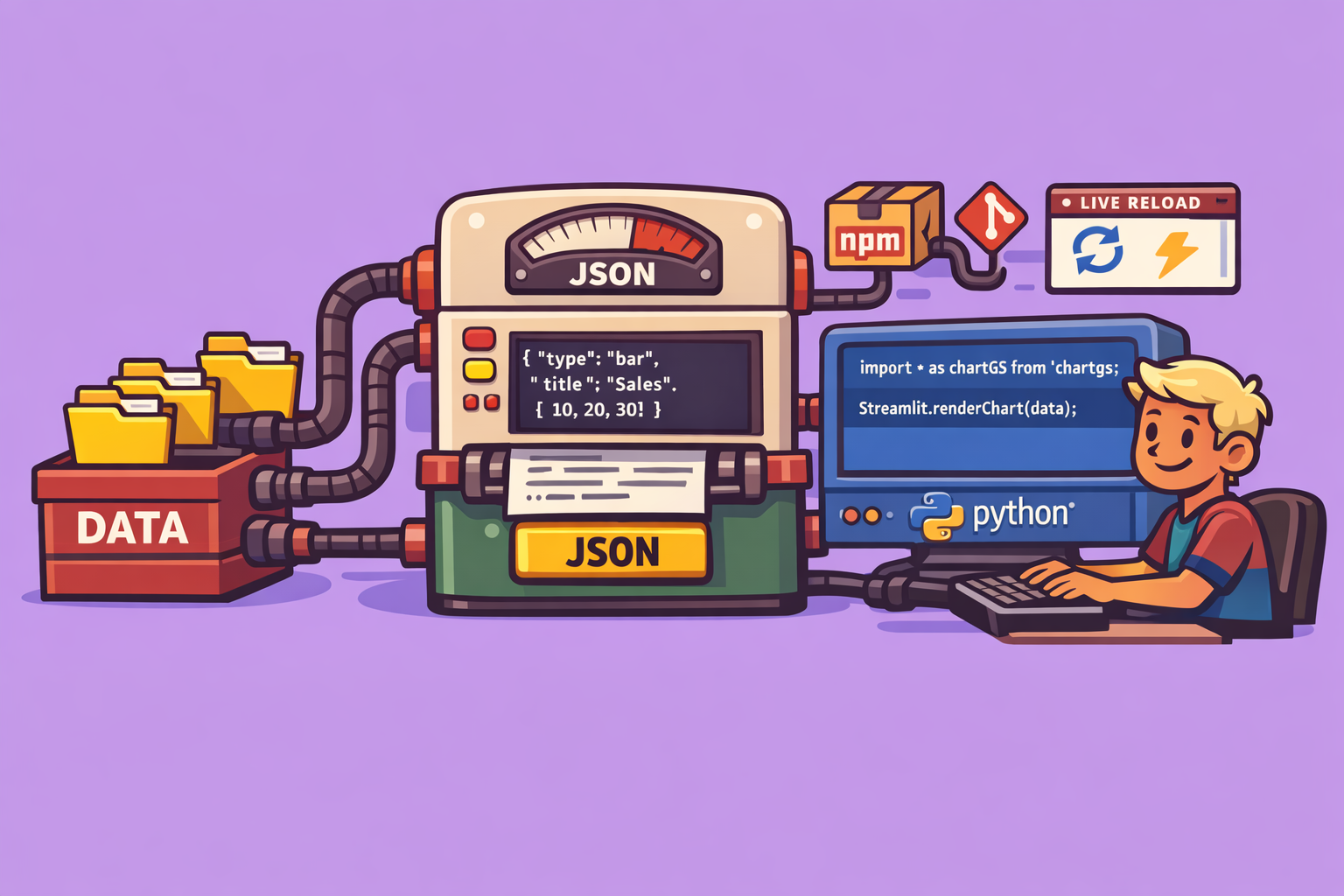
Streamlit is a powerful framework for building interactive data applications in Python. While it offers a rich set of built-in components, sometimes you need something more custom to perfectly match your visualization needs. This guide delves into creating a custom Streamlit component that integrates with Chart.js, a popular JavaScript charting library, to render dynamic and aesthetically pleasing charts within your Streamlit apps.
The Power of Custom Components in Streamlit
Streamlit’s component ecosystem allows developers to extend its functionality by wrapping existing JavaScript libraries or creating entirely new interactive elements. This approach bridges the gap between Python’s data processing capabilities and the rich interactive experiences offered by frontend technologies. The custom component template, provided by the Streamlit team, simplifies this process significantly.
Setting Up Your Development Environment
Before diving into component development, ensure you have the necessary tools installed:
- Python Environment Management: Use
uv(orpipenv,conda) for managing your Python virtual environments. - Node.js and npm: Node.js is a JavaScript runtime, and
npm(Node Package Manager) is used to install JavaScript packages.
Step-by-Step Component Creation
The process of building a custom Streamlit component, particularly with the V2 template, involves several key steps:
1. Initialize Your Component Project
The Streamlit team provides a cookiecutter template to scaffold new components.
- Execute the cookiecutter command:
uvx cookiecutter https://github.com/streamlit/component-template - Follow the prompts: Provide details like your name, email, component name (e.g.,
streamlit_chart_js), and choosepure TypeScriptfor the frontend language. This will create a new directory for your component.
2. Install Python Dependencies
Navigate into your newly created component directory.
- Create a Python virtual environment:
uv venv - Activate the environment:
# On Windows .venv\Scripts\activate # On macOS/Linux source .venv/bin/activate - Install the component in editable mode:
uv pip install -e .This allows any changes you make to the Python files to be immediately reflected in your
streamlitapp without reinstallation.
3. Install JavaScript Dependencies and Build the Frontend
Custom Streamlit components have a Python backend and a JavaScript/TypeScript frontend.
- Navigate to the frontend directory:
cd <your_component_name>/frontend - Install JavaScript packages:
npm installThis command reads the
package.jsonfile and installs all listed dependencies (includingchart.jsif you add it here). - Build the frontend code:
npm run buildThis command compiles your TypeScript/JavaScript into a
builddirectory, which your Python component will then load.
Tip for Development: Live Reloading
While developing, npm run build rebuilds the frontend whenever changes are made. For a smoother workflow, use npm run dev in the frontend directory. This command builds the frontend and watches for file changes, automatically rebuilding when your source code (e.g., index.ts) is modified. Combined with Streamlit’s “Always rerun” setting, this allows for real-time visualization of your component’s changes.
Understanding the Component Structure
A custom Streamlit component typically consists of:
- Python Side (
__init__.py,example.py):__init__.py: Defines the Python function that Streamlit users will call to render your component. It loads the compiled JavaScript from thefrontend/builddirectory.example.py: A simple Streamlit application demonstrating how to use your custom component. It passes data and parameters to the frontend.
- JavaScript/TypeScript Side (
frontend/src/index.ts):index.ts: The core of your frontend logic. This file receives data from Python, renders the actual UI (e.g., a Chart.js graph), and sends back user interactions to Python. It interacts with the Streamlit component API (e.g.,Streamlit.render,Streamlit.setComponentReady,Streamlit.setFrameHeight,Streamlit.setComponentValue).
Integrating Chart.js for Dynamic Visualizations
The goal is to render Chart.js graphs based on JSON specifications passed from Python.
1. Installing Chart.js
First, install Chart.js in your frontend:
cd <your_component_name>/frontend
npm install chart.js
2. Modifying frontend/src/index.ts
This is where the magic happens. You’ll update index.ts to:
- Receive Chart Configuration from Python: The
Streamlit.argsobject will contain the JSON configuration for your Chart.js graph (e.g.,config: {...}). - Render the Chart: Use Chart.js to create a new chart instance on an HTML canvas element.
- Handle Responsiveness: Implement logic to resize the chart when the Streamlit component’s dimensions change.
Here’s a conceptual outline of the changes:
// frontend/src/index.ts
import { Streamlit, ComponentProps } from "streamlit-component-lib";
import { Chart, registerables } from "chart.js"; // Import Chart.js

Chart.register(...registerables); // Register all Chart.js components

// Global variable to hold the chart instance
let myChart: Chart | null = null;
let container: HTMLDivElement | null = null; // Container for the chart

function onRender(event: ComponentProps) {
  const { config, height } = event.args; // Get config and height from Python

  if (!container) {
    container = document.createElement("div");
    container.style.width = "100%";
    container.style.height = "100%"; // Initially fill available space
    document.body.appendChild(container);

    // Create a canvas element for Chart.js
    const canvas = document.createElement("canvas");
    canvas.id = "chartCanvas";
    container.appendChild(canvas);
  }

  const canvas = document.getElementById("chartCanvas") as HTMLCanvasElement;

  if (!canvas) {
    console.error("Canvas element not found!");
    return;
  }

  // Destroy previous chart instance if it exists
  if (myChart) {
    myChart.destroy();
  }

  // Render the new chart
  if (config) {
    myChart = new Chart(canvas, config);
  }

  // Inform Streamlit about the component's readiness and height
  Streamlit.setComponentReady();
  if (height) {
    Streamlit.setFrameHeight(height); // Set frame height based on Python input
  } else {
    // If no height is passed, let Chart.js manage its own height (responsive)
    Streamlit.setFrameHeight(); // Let Streamlit determine the height automatically
  }

  // Optional: Handle clicks on the chart to send data back to Python
  canvas.onclick = (e) => {
    if (myChart) {
      const activePoints = myChart.getElementsAtEventForMode(e, 'nearest', { intersect: true }, false);
      if (activePoints.length > 0) {
        const datasetIndex = activePoints[0].datasetIndex;
        const dataIndex = activePoints[0].index;
        const value = myChart.data.datasets[datasetIndex].data[dataIndex];
        Streamlit.setComponentValue({
          clicked: true,
          datasetIndex,
          dataIndex,
          value,
        });
      }
    }
  };
}

Streamlit.events.addEventListener(Streamlit.RENDER_EVENT, onRender);
3. Modifying Your Python Component (__init__.py)
Update your Python component function to accept the Chart.js configuration as a dictionary and pass it to the JavaScript frontend.
# streamlit_chart_js/__init__.py
import streamlit.components.v1 as components
import os
import json

# Absolute path to the frontend build directory
_RELEASE = True # Set to False for local development if not using npm run dev
parent_dir = os.path.dirname(os.path.abspath(__file__))
build_dir = os.path.join(parent_dir, "frontend", "build")

# Create the _component_func as a streamlit.components.v1.DeclaredComponent object
if _RELEASE:
    _component_func = components.declare_component(
        "streamlit_chart_js", path=build_dir
    )
else:
    _component_func = components.declare_component(
        "streamlit_chart_js", url="http://localhost:3001" # Or whatever port npm run dev uses
    )

def streamlit_chart_js(
    config: dict,
    height: int = 400, # Default height
    key: str = None,
):
    """
    Renders a Chart.js chart in Streamlit.
    """
    component_value = _component_func(
        config=config,
        height=height,
        key=key,
        default=None, # No default return value
    )
    return component_value
4. Using Your Component in example.py
Now, you can use your custom component to display Chart.js graphs.
# example.py
import streamlit as st
from streamlit_chart_js import streamlit_chart_js
import json

st.set_page_config(layout="wide")

st.subheader("Chart.js Bar Chart Example")

# Example Chart.js configuration (as a Python dictionary)
bar_chart_config = {
    "type": "bar",
    "data": {
        "labels": ["Red", "Blue", "Yellow", "Green", "Purple", "Orange"],
        "datasets": [{
            "label": '# of Votes',
            "data": [12, 19, 3, 5, 2, 3],
            "backgroundColor": [
                'rgba(255, 99, 132, 0.5)',
                'rgba(54, 162, 235, 0.5)',
                'rgba(255, 206, 86, 0.5)',
                'rgba(75, 192, 192, 0.5)',
                'rgba(153, 102, 255, 0.5)',
                'rgba(255, 159, 64, 0.5)'
            ],
            "borderColor": [
                'rgba(255, 99, 132, 1)',
                'rgba(54, 162, 235, 1)',
                'rgba(255, 206, 86, 1)',
                'rgba(75, 192, 192, 1)',
                'rgba(153, 102, 255, 1)',
                'rgba(255, 159, 64, 1)'
            ],
            "borderWidth": 1
        }]
    },
    "options": {
        "responsive": True,
        "maintainAspectRatio": False, # Important for responsive sizing
        "scales": {
            "y": {"beginAtZero": True}
        }
    }
}

# Render the custom component
clicked_data = streamlit_chart_js(config=bar_chart_config, height=500, key="my_bar_chart")

if clicked_data:
    st.write(f"You clicked on: {clicked_data}")

st.subheader("Chart.js Line Chart Example")

line_chart_config = {
    "type": "line",
    "data": {
        "labels": ["January", "February", "March", "April", "May", "June", "July"],
        "datasets": [{
            "label": "My First Dataset",
            "data": [65, 59, 80, 81, 56, 55, 40],
            "fill": False,
            "borderColor": "rgb(75, 192, 192)",
            "tension": 0.1
        }]
    },
    "options": {
        "responsive": True,
        "maintainAspectRatio": False,
    }
}

streamlit_chart_js(config=line_chart_config, height=300, key="my_line_chart")
Running Your Streamlit App
- Ensure
npm run devis running in yourfrontenddirectory for live reloading. - Run your Streamlit application:
uv run streamlit run example.py
You should now see beautiful, interactive Chart.js graphs rendered directly within your Streamlit application!
Advanced Considerations
- Event Handling: Streamlit components can send data back and forth. You can implement click events on your Chart.js graphs to update Python variables, enabling dynamic interactions.
- Theming: Passed Streamlit’s theme information (colors, fonts) into your Chart.js configuration for a consistent look.
- Error Handling: Add robust error handling in both Python and JavaScript to catch issues gracefully.
- Deployment: For production, ensure your frontend is built (
npm run build) and the component is correctly packaged and installed.
By following this guide, you can unlock the full potential of custom components, bringing sophisticated and visually appealing Chart.js visualizations to your Streamlit dashboards.
🔍 Discover Kaptan Data Solutions — your partner for medical-physics data science & QA!
We're a French startup dedicated to building innovative web applications for medical physics, and quality assurance (QA).
Our mission: provide hospitals, cancer centers and dosimetry labs with powerful, intuitive and compliant tools that streamline beam-data acquisition, analysis and reporting.
🌐 Explore all our medical-physics services and tech updates
💻 Test our ready-to-use QA dashboards online
Our expertise covers:
🔬 Patient-specific dosimetry and image QA (EPID, portal dosimetry)
📈 Statistical Process Control (SPC) & anomaly detection for beam data
🤖 Automated QA workflows with n8n + AI agents (predictive maintenance)
📑 DICOM-RT / HL7 compliant reporting and audit trails
Leveraging advanced Python analytics and n8n orchestration, we help physicists automate routine QA, detect drifts early and generate regulatory-ready PDFs in one click.
Ready to boost treatment quality and uptime? Let’s discuss your linac challenges and design a tailor-made solution!
Get in touch to discuss your specific requirements and discover how our tailor-made solutions can help you unlock the value of your data, make informed decisions, and boost operational performance!
Comments