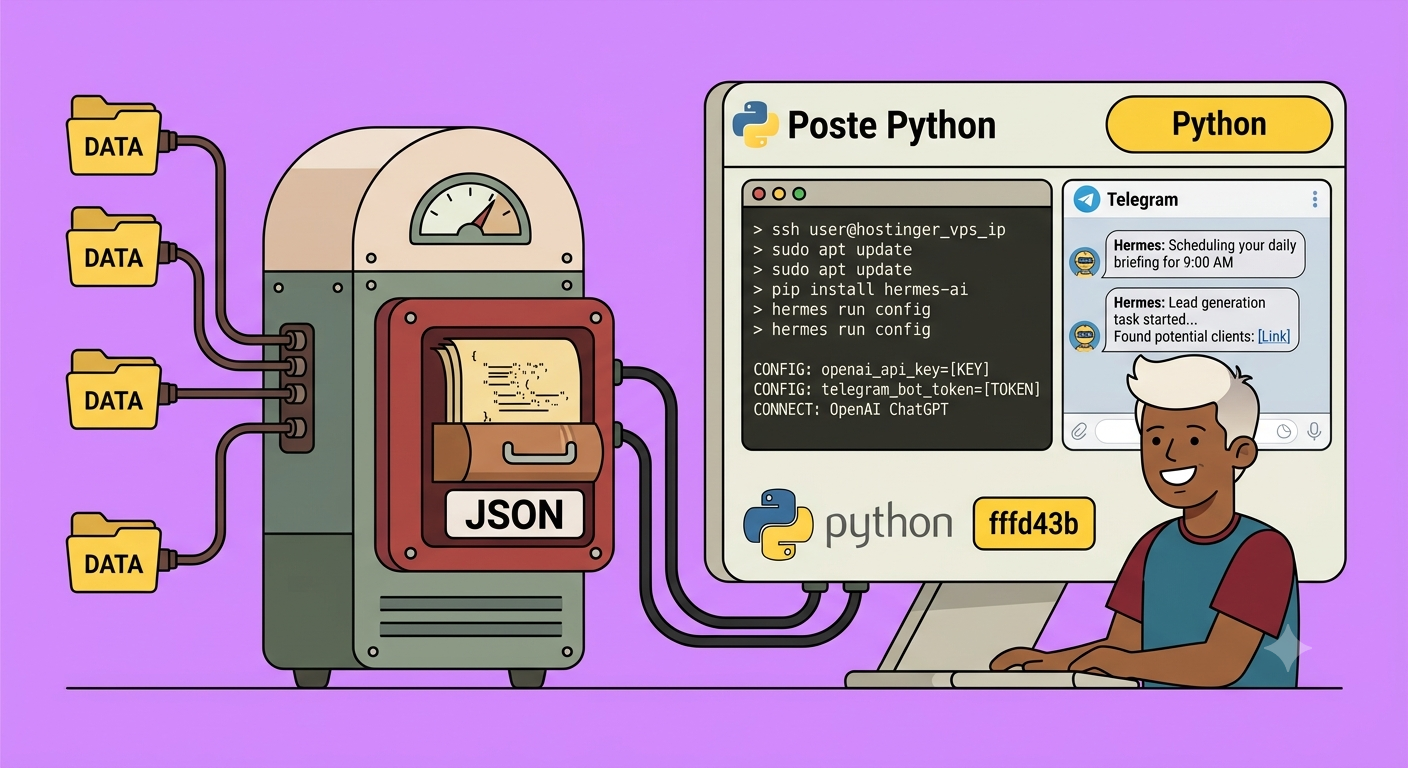
Most AI agents today share a frustrating flaw: you invest an hour explaining your project, your preferences, and your files, they do a decent job, and the next session they forget half of it. That was the state of the art until recently. Enter Hermes – an open‑source agent that runs on your own server, remembers everything it has done for you, and, quite literally, gets better over time.
An AI agent is not a chatbot like ChatGPT or Claude, nor a coding copilot. It is an autonomous entity that lives on your machine and learns. Hermes, developed by NS Research, is different because of one feature: its learning loop. You give it a complex task; it solves it. Then it analyses what worked and writes a reusable procedure (a “skill”). The next time a similar problem appears, it doesn’t start from zero – it loads the skill, applies it, and updates the procedure if the result is even better. This closed‑loop self‑improvement means that after a few weeks, your Hermes agent knows your projects, your preferences, and your quirks. It becomes a tailor‑made helper that constantly refines itself.
And it is fully open source – you can read every line of code, modify it, redistribute it, and build your own applications on top. Without paying a cent for the software itself.
In this guide we will do two things together:
- Install Hermes from scratch on a cheap virtual private server (VPS) – no coding skills required, no expensive hardware – just a few euros per month.
- Walk through real‑world examples that show you how to use it for automated daily briefings and lead generation.
By the end, you will understand exactly how to get the most out of this ultra‑powerful AI agent.
What Makes Hermes Different?
Imagine you give Hermes a task: “Find three qualified leads in Toulouse for a marketing campaign.” It does the research. But then it does something no other agent does: it analyses how it succeeded and writes a skill file. The next time you give a similar task, it loads that skill, performs the job better and faster, and updates the skill if the outcome improves. This is not a retrained model; it is accumulated concrete experience on how you work with your problems.
That’s why your Hermes agent on day 30 is completely different (and more effective) than the one on day 1. It learns from every interaction.
Prerequisites
- A VPS (virtual server) from any cloud provider – a plan with 1 CPU and 1 GB RAM is enough to start. Expect to pay about $5–$10 per month.
- A Telegram account (free) – we will use Telegram as the primary chat interface.
- A ChatGPT subscription (or another supported LLM) – you can connect your existing ChatGPT account without extra API costs.
- A few minutes of patience for the initial setup.
No coding experience needed.
Step‑by‑Step Installation
1. Create Your Virtual Server
- Log in to your cloud provider’s dashboard (we’ll use a generic VPS provider; the exact steps are almost identical on any platform).
- Choose a plan – start with the cheapest 1‑CPU option. You can upgrade later.
- Select an operating system: Ubuntu (recommended).
- Set a strong root password – save it somewhere safe.
- Confirm and wait for the server to spin up (usually a few minutes).
Once the server is ready, you will see a dashboard with an IP address and an SSH access string (e.g., root@your‑server‑ip).
2. Connect to Your Server via SSH
- On Windows, open Command Prompt (
cmd) - On macOS/Linux, open Terminal.
- Type the SSH command you copied (e.g.,
ssh root@your‑server‑ip), press Enter, and confirm the fingerprint by typingyes. - Enter the root password you set earlier. (Nothing will appear on screen as you type – that’s normal.)
You should now see a welcome message with system info. You are inside your remote machine.
3. Install Hermes
- Go to the official Hermes website (link provided in the original tutorial). Find the Linux installation command – it looks like a single line of curl piped to bash.
- Copy that command, paste it into your SSH terminal, and press Enter.
- The script will install all dependencies – this may take a few minutes.
4. Configure Hermes for the First Time
After installation, the setup wizard appears. Choose Full Setup (option 2). You will then be asked to select a language model (the “brain” of your agent).
- For beginners, the easiest option is OpenAI (Codex) – it uses your existing ChatGPT subscription. No extra fees.
- Follow the on‑screen prompts: it will ask you to open a browser link and authenticate with your OpenAI account. You will be shown a device code – copy it, go to the provided URL, log in, paste the code, and confirm.
- After successful authentication, choose the model (e.g., GPT‑4‑o or ChatGPT 5.5 if available).
- When asked for the backend, select local (keep current) – you are already inside the VPS, so “local” means the machine you’re on.
- For the communication channel, choose Telegram (use spacebar to select it, then Enter).
- Now you need a Telegram bot token:
- Open Telegram on your phone or desktop.
- Search for BotFather and start a chat.
- Send
/newbot, choose a name (e.g., “My Personal Agent”), and then a username that ends with_bot(e.g.,my_personal_agent_bot). - BotFather will give you a token. Copy it.
- Paste the token into your terminal when prompted. Confirm that only you (or specific users) can talk to the agent.
- The wizard will ask for your Telegram user ID – you can find it by sending a message to
@userinfoboton Telegram. Copy the ID and paste it. - Then choose to run the agent as a system service (the VPS option) and set the user to
root. Finally, answeryesto start the service now.
When you see Setup Complete, you have successfully installed and configured Hermes.
5. Access Your Agent
- Via terminal: In the same SSH session, simply type
hermes. You’ll see the Hermes command line interface. Try saying “Hello” – it should reply using ChatGPT. - Via Telegram: Open your bot in Telegram and send a message. Within seconds you should receive a reply.
Practical Examples
Example 1: Daily Morning Briefing
Give Hermes a simple instruction in natural language:
“Create a task named
morning_briefing. Every weekday at 7:00 AM, send me a short briefing with the current date, the top 3 tech news from the last 24 hours, and a one‑sentence analysis. Send it to this Telegram chat.”
Hermes will automatically create a scheduled job (a “cron task”). To test it immediately, run:
hermes cron run morning_briefing
After a few minutes you’ll receive a perfectly formatted digest on Telegram. Over time, as you provide feedback, the agent will refine the analysis to match your interests.
Example 2: Automated Lead Generation (Sales Agent)
This is where Hermes shines as a virtual employee. Give it a mission like:
“Search online for plumbers and heating technicians in the Toulouse area. Identify those who lack an effective marketing campaign (no Google Ads, poor website). Return 3 qualified leads: business name, phone number, and a pitch angle for a Google Ads or Meta campaign. Present the result as a table.”
Hermes will:
- Use mapping services to locate businesses.
- Visit websites, take screenshots, and analyse content.
- Evaluate marketing presence.
- Compile a list with your required fields.
This one‑shot query might take 15–20 minutes, but it does the work of a human researcher. To make it repeat daily, simply wrap the same instruction into a cron task, adding a file‑reading step so it never duplicates leads:
“Create a task named
daily_leads. Every morning at 9:00, search for leads as described. Before starting, read a fileleads_already_found.txtand skip any already listed. At the end, append new leads to that file.”
Now you have a lead‑generation engine that runs while you sleep.
Memory and Self‑Improvement
Hermes’ local memory is the secret sauce. It stores every skill you teach it and every outcome. After a few weeks of use, it will:
- Know your preferred email format.
- Remember which analyses you liked.
- Automatically adjust its search strategy for better results.
For scheduled tasks, remember that each execution starts with a blank slate regarding the specific data (e.g., which leads were already found). Use simple file storage to persist results between runs – that’s the trick to avoid repetition.
Managing Your Agent
- List all scheduled tasks:
hermes cron list - Run a task immediately:
hermes cron run <task_name> - See all available commands: type
helpor/help - Reconfigure communication channels: exit Hermes with
Ctrl+C, then typehermes gateway setup
If you get stuck at any point – and the interface buttons change or something is unclear – open a chat with ChatGPT or Claude, describe your exact situation, and ask for guidance. The hardest part is the initial installation; after that the agent itself can help you.
Conclusion
Hermes is not just another AI tool. It is an autonomous, open‑source agent that learns from experience and becomes more valuable every day. You can install it on a cheap VPS for less than the cost of a coffee per day and use your existing ChatGPT subscription as its brain. Whether you need a daily briefing, a sales prospector, or any repetitive digital task, Hermes can handle it while you focus on higher‑level work.
The examples shown here are just the beginning. Imagine an agent that monitors your competition, checks your code for vulnerabilities, or even helps you write and publish content – all without you lifting a finger after the initial setup. Start with one simple task, then expand. In a few weeks, you’ll wonder how you ever worked without it.
Give it a try – you have everything you need right here.
🔍 Discover Kaptan Data Solutions — your partner for medical-physics data science & QA!
We're a French startup dedicated to building innovative web applications for medical physics, and quality assurance (QA).
Our mission: provide hospitals, cancer centers and dosimetry labs with powerful, intuitive and compliant tools that streamline beam-data acquisition, analysis and reporting.
🌐 Explore all our medical-physics services and tech updates
💻 Test our ready-to-use QA dashboards online
Our expertise covers:
🔬 Patient-specific dosimetry and image QA (EPID, portal dosimetry)
📈 Statistical Process Control (SPC) & anomaly detection for beam data
🤖 Automated QA workflows with n8n + AI agents (predictive maintenance)
📑 DICOM-RT / HL7 compliant reporting and audit trails
Leveraging advanced Python analytics and n8n orchestration, we help physicists automate routine QA, detect drifts early and generate regulatory-ready PDFs in one click.
Ready to boost treatment quality and uptime? Let’s discuss your linac challenges and design a tailor-made solution!
Get in touch to discuss your specific requirements and discover how our tailor-made solutions can help you unlock the value of your data, make informed decisions, and boost operational performance!
Comments